Linux: Setup Swap Memory
Swap memory acts as an extension of physical RAM, providing additional virtual memory when the system runs low on physical memory. This guide will walk you through the process of setting up swap memory on a Linux system.
Prerequisites
Root or sudo access to the Linux system
Sufficient disk space for the swap file
Basic knowledge of Linux commands
Check Current Swap Memory
Before creating new swap space, it’s important to check if swap is already configured on your system.
Check swap memory using
htop:htop
Note
Press
F10orqto exit htop.Display current swap configuration:
swapon --show
This command shows all active swap devices and their sizes.
View memory and swap usage:
free -h
Turn Off Existing Swap
If you need to modify or replace existing swap, you must turn it off first.
Warning
This operation moves data from swap to main memory and may take several minutes depending on the amount of data in swap.
Disable all swap spaces:
sudo swapoff -a
Verify swap is disabled:
swapon --show
The command should return no output if swap is successfully disabled.
Create New Swap File
Now we’ll create a new swap file with the desired size.
Create a 5GB swap file:
sudo dd if=/dev/zero of=/swapfile bs=1G count=5
Note
if=/dev/zero- Input file (source of zeros)of=/swapfile- Output file (swap file location)bs=1G- Block size (1 Gigabyte)count=5- Number of blocks (5 GB total)
You can adjust the
countparameter to change the swap size (e.g.,count=16for 16GB).Verify the file was created:
ls -lh /swapfile
Configure Swap File Permissions
For security reasons, the swap file should only be accessible by the root user.
Set correct permissions:
sudo chmod 0600 /swapfile
Verify permissions:
ls -l /swapfile
The output should show:
-rw-------(readable and writable only by root)
Initialize Swap Area
Set up the Linux swap area:
sudo mkswap /swapfile
This command prepares the file for use as swap space.
Enable the swap file:
sudo swapon /swapfile
Verify swap is active:
swapon --show
You should see your new swap file listed.
Check memory and swap status:
free -h
Make Swap Permanent
By default, the swap configuration will be lost after a reboot. To make it permanent:
Create a backup of the fstab file:
sudo cp /etc/fstab /etc/fstab.back
Important
Always backup
/etc/fstabbefore modifying it. This file is critical for system boot.Add swap entry to fstab:
echo '/swapfile none swap sw 0 0' | sudo tee -a /etc/fstab
Verify the entry was added:
tail -1 /etc/fstab
You should see:
/swapfile none swap sw 0 0
Final Verification
Check swap status:
swapon --show
Expected output:
NAME      TYPE SIZE USED PRIO
/swapfile file   5G   0B   -2
View detailed memory information:
free -h
Expected output should show swap space available:
total        used        free      shared  buff/cache   available
Mem:           15Gi       2.1Gi        10Gi       234Mi       3.2Gi        12Gi
Swap:           5Gi          0B         5Gi
Monitor system with htop:
htop
You should see the swap bar at the top showing your new swap space.
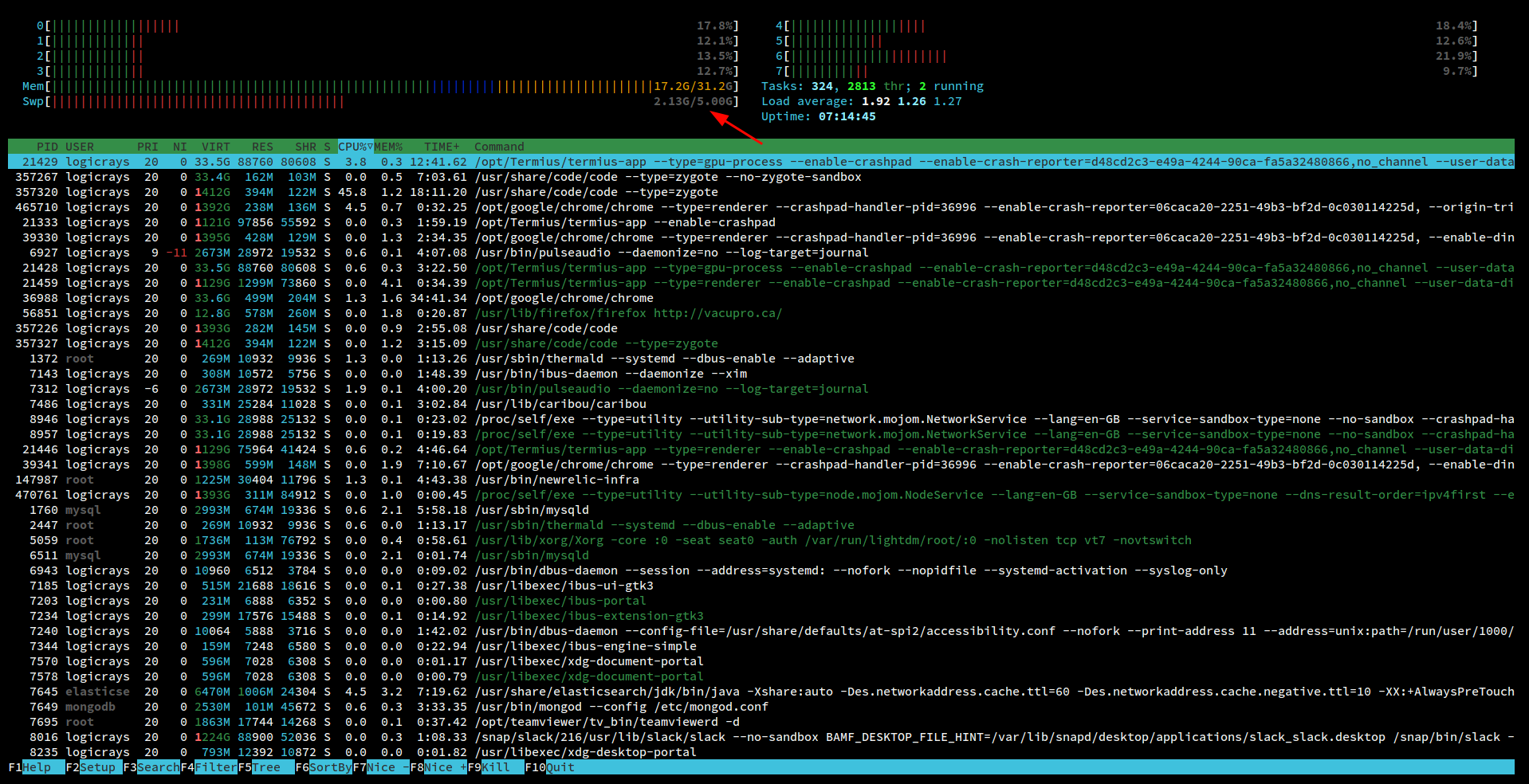
Fig. 37 Successfully configured 5GB swap memory
Troubleshooting
Swap file is not persisting after reboot
Verify the entry in
/etc/fstabis correctCheck for typos in the fstab entry
Ensure the swap file path is absolute (
/swapfile)
Insufficient disk space error
Check available disk space:
df -hChoose a smaller swap size
Free up disk space before creating swap
Permission denied errors
Ensure you’re using
sudofor all swap commandsVerify you have root access to the system
Additional Resources
Summary
You have successfully configured swap memory on your Linux system. The swap file will:
Provide additional virtual memory when physical RAM is full
Persist across system reboots
Improve system stability under memory pressure
Tip
For optimal performance, it’s recommended to have sufficient physical RAM rather than relying heavily on swap space. Swap should be used as a safety buffer, not as a primary memory solution.