Linux: Switch Between Multiple PHP Versions
This guide shows you how to switch between multiple PHP versions on Ubuntu Linux systems using Apache web server.
Overview
When working on different projects that require different PHP versions, you need the ability to switch between PHP versions easily. This guide covers:
Manual switching between specific PHP versions
Automated switching using a shell script
Managing PHP versions for Apache and CLI
Reference: https://ostechnix.com/how-to-switch-between-multiple-php-versions-in-ubuntu/
Prerequisites
Before switching PHP versions, ensure you have:
Multiple PHP versions installed on your system
Apache web server installed
Root or sudo access
Manual PHP Version Switching
Switch From PHP 7.4 to PHP 8.1
Follow these steps to switch from PHP 7.4 to PHP 8.1:
Disable the current PHP version (7.4) for Apache:
sudo a2dismod php7.4
Enable the target PHP version (8.1) for Apache:
sudo a2enmod php8.1
Set PHP 8.1 as the default CLI version:
sudo update-alternatives --set php /usr/bin/php8.1
Verify the installed PHP versions (optional):
sudo update-alternatives --config php
This command shows all installed PHP versions and allows you to select the default.
Restart Apache to apply changes:
sudo systemctl restart apache2
Verify the switch:
php -vThis should show PHP 8.1 as the active version.
Switch From PHP 8.1 to PHP 7.4
To switch back from PHP 8.1 to PHP 7.4, follow these steps:
Disable PHP 8.1 for Apache:
sudo a2dismod php8.1
Enable PHP 7.4 for Apache:
sudo a2enmod php7.4
Set PHP 7.4 as the default CLI version:
sudo update-alternatives --set php /usr/bin/php7.4
Verify the installed PHP versions (optional):
sudo update-alternatives --config php
Restart Apache to apply changes:
sudo systemctl restart apache2
Verify the switch:
php -vThis should now show PHP 7.4 as the active version.
Troubleshooting
Error: Module does not exist
If you encounter an error like ERROR: Module php8.1 does not exist!, it means the Apache PHP module is not installed. Install it with:
sudo apt-get install libapache2-mod-php8.1
Replace php8.1 with the version you need (e.g., php7.4, php8.0, php8.2, php8.3, php8.4).
Switch PHP Script
For frequent PHP version switching, you can use an automated shell script that simplifies the process with a single command.
See also
For detailed installation instructions and the complete script, see Script 6: Automated PHP Version Switching
The automated script allows you to:
Switch PHP versions with a single command (e.g.,
switch 8.1)Automatically update both Apache and CLI PHP versions
Disable all other PHP versions for clean switching
Restart Apache automatically after switching
Support multiple PHP versions (5.6, 7.0, 7.1, 7.2, 7.3, 7.4, 8.0, 8.1, 8.2, 8.3, 8.4)
Quick Example
After installing the script from the bash service scripts guide:
# Switch to PHP 8.1
switch 8.1

# Switch to PHP 7.4
switch 7.4

# View help
switch --help
Script Output
When you run the switch command, you’ll see output similar to this:
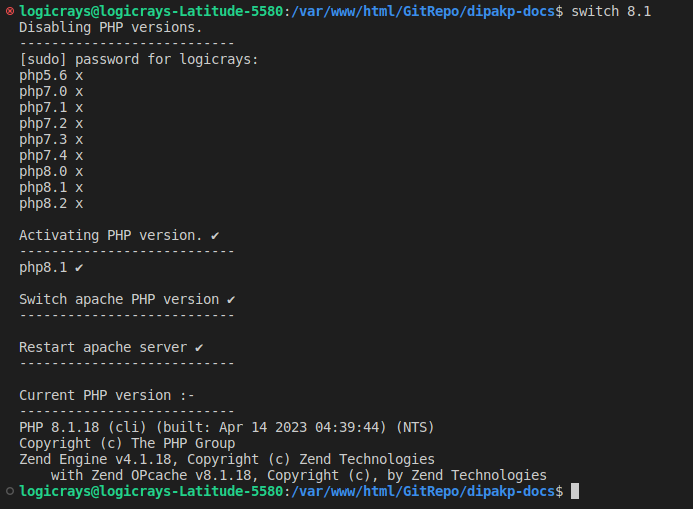
Fig. 38 PHP version switch command output
Best Practices
Version Management
Test before production: Always test version switches in development environments first
Check compatibility: Ensure your application supports the target PHP version
Document requirements: Keep track of which projects require which PHP versions
Use version control: Include PHP version requirements in your project documentation
Common Use Cases
- Scenario 1: Different Projects
If you have Project A requiring PHP 7.4 and Project B requiring PHP 8.1, switch versions as needed:
# Working on Project A
switch 7.4

# Working on Project B
switch 8.1
- Scenario 2: Testing Upgrades
When upgrading applications, test with newer PHP versions:
# Current version
switch 7.4
# Run tests

# Test with new version
switch 8.1
# Run tests again
- Scenario 3: Debugging
Switch to specific versions to reproduce or debug issues:
switch 8.0 # If issue reported on PHP 8.0
Additional Commands
Check Current PHP Version
# CLI version
php -v

# Apache version (via phpinfo)
# Create a file: /var/www/html/info.php with content: <?php phpinfo(); ?>
# Then access: http://localhost/info.php
List Installed PHP Versions
# List all installed PHP packages
dpkg -l | grep php | grep -v php-common
Install Additional PHP Versions
# Add PHP repository (if not already added)
sudo add-apt-repository ppa:ondrej/php
sudo apt update

# Install specific PHP version
sudo apt install php8.2 php8.2-cli php8.2-common libapache2-mod-php8.2
Tip
Always keep your PHP installations updated with security patches. Use sudo apt update && sudo apt upgrade regularly.