Visual Studio Code Configuration Guide
Visual Studio Code (VS Code) is a powerful, free, and open-source code editor developed by Microsoft. This comprehensive guide covers installation, configuration, extensions, and optimization for PHP/Magento development.
Table of Contents
Introduction
What is Visual Studio Code?
Visual Studio Code is a lightweight but powerful source code editor that runs on your desktop. It comes with:
Built-in support for JavaScript, TypeScript, and Node.js
Rich ecosystem of extensions for other languages (PHP, Python, Java, etc.)
Integrated Git version control
Intelligent code completion (IntelliSense)
Built-in debugging
Customizable themes and keyboard shortcuts
Key Features:
Free and open source
Cross-platform (Windows, macOS, Linux)
Lightning fast performance
Extensive extension marketplace
Integrated terminal
Multi-cursor editing
Code refactoring tools
Installation
Download and Install
Download Visual Studio Code from the official website:
Official Download: Visual Studio Code
Installation by Platform:
# Download .deb package from website, then:
sudo dpkg -i code_*.deb

# Or use snap
sudo snap install --classic code
Download the Windows installer (.exe)
Run the installer
Follow the installation wizard
Launch VS Code
Download the macOS .zip file
Extract and move to Applications folder
Launch VS Code
Verify Installation
# Check VS Code version
code --version

# Open VS Code from terminal
code .
PHP Code Sniffer Configuration for Magento 2
Understanding Code Sniffers
Code sniffers analyze your code against coding standards to ensure consistency and quality. Magento uses Squiz Labs’ PHP_CodeSniffer (phpcs) with its own custom coding standard.
Supported Standards:
Magento Coding Standard (recommended for Magento development)
Magento Coding Standard Repository: magento/magento-coding-standard
Reference Guide: Webkul Code Sniffer Tutorial
Prerequisites
Before setting up phpcs, ensure you have:
VS Code installed
Composer installed
PHP installed and configured
phpcs extension for VS Code
Install Magento Coding Standard
Step 1: Install via Composer
# Navigate to your project directory
cd /var/www/html/

# Install Magento coding standard
composer create-project magento/magento-coding-standard --stability=dev InstallationDir
Tip
You can install this globally or per-project. For global installation, use a common directory like /opt/magento-coding-standard
Step 2: Install phpcs Extension in VS Code
Open VS Code
Go to Extensions (
Ctrl+Shift+X)Search for “phpcs”
Install the extension by Ioannis Kappas
Configure phpcs in VS Code
Step 1: Open Settings
Press Ctrl+Shift+P (or Cmd+Shift+P on macOS) and type “Preferences: Open Settings (JSON)”
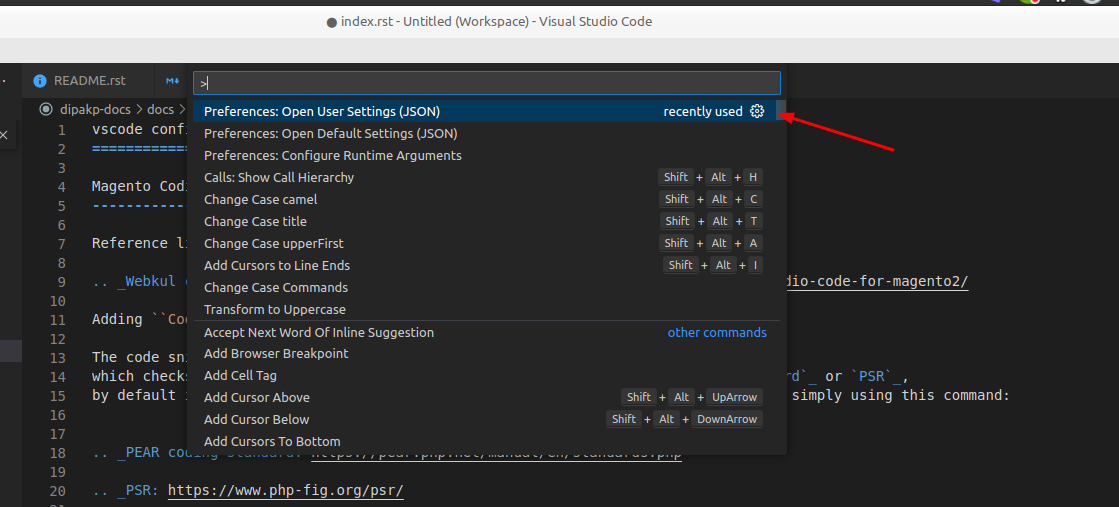
Step 2: Add phpcs Configuration
Add the following configuration to your settings.json:
{
    // PHP CodeSniffer executable path
    "phpcs.executablePath": "/var/www/html/InstallationDir/vendor/bin/phpcs",

    // Magento 2 coding standard ruleset
    "phpcs.standard": "/var/www/html/InstallationDir/Magento2/ruleset.xml",

    // Show warnings (optional)
    "phpcs.showWarnings": true,

    // Enable phpcs on save (optional)
    "phpcs.enable": true
}
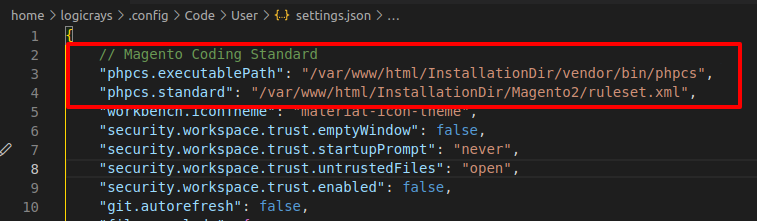
Step 3: Restart VS Code
Close and reopen VS Code to apply the changes.
Verify phpcs is Working
After configuration, phpcs will automatically highlight code standard violations:
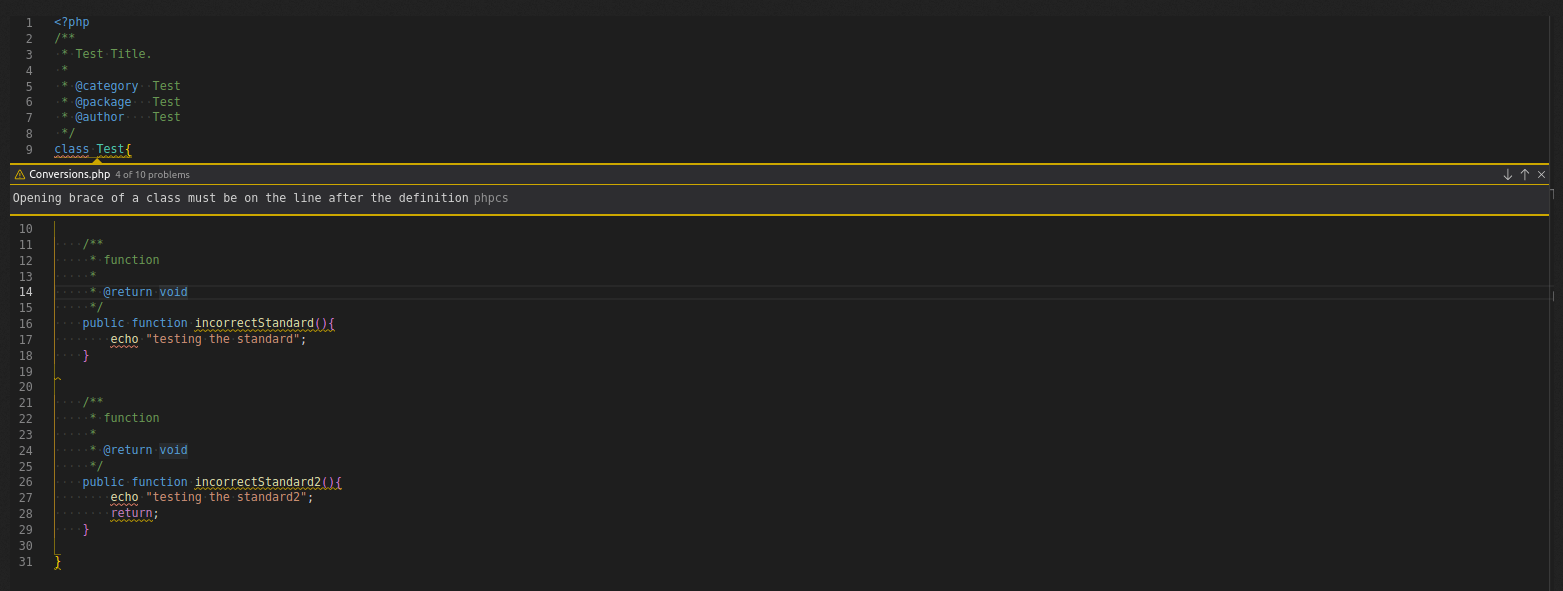
Common phpcs Indicators:
Red underlines: Errors that must be fixed
Yellow underlines: Warnings (recommended to fix)
Hover over underlined code to see the specific issue
Manual phpcs Commands
You can also run phpcs manually from the terminal:
# Check a specific file
/var/www/html/InstallationDir/vendor/bin/phpcs --standard=Magento2 path/to/file.php

# Check an entire directory
/var/www/html/InstallationDir/vendor/bin/phpcs --standard=Magento2 app/code/MyVendor/

# Auto-fix issues (where possible)
/var/www/html/InstallationDir/vendor/bin/phpcbf --standard=Magento2 path/to/file.php
Essential VS Code Extensions
VS Code’s power comes from its rich extension ecosystem. Here are recommended extensions for PHP/Magento development, organized by category.
How to Install Extensions
Via VS Code GUI:
Open VS Code
Press
Ctrl+Shift+X(orCmd+Shift+Xon macOS)Search for the extension name
Click “Install”
Via Command Line:
code --install-extension publisher.extension-name
PHP Development Extensions
Essential PHP Extensions:
PHP Intelephense by Ben Mewburn - Advanced PHP language support with IntelliSense
PHP Debug by Xdebug - Debug support for PHP with Xdebug
phpcs (Phpcs) by shevaua - PHP CodeSniffer integration for code quality
PHPStan - Static analysis tool for finding bugs
PHP DocBlocker by Neil Brayfield - Auto-generate PHP documentation blocks
PHP Getters & Setters by phproberto - Generate getters and setters for PHP classes
PHP Constructor by Mehedi Hassan - Initialize properties from constructor
PHP Awesome Snippets by HakCorp - Collection of useful PHP snippets
PHP Support Utils by Open Southeners - Additional PHP utilities
PHPUnit Snippets by Winnie Lin - Snippets for PHPUnit testing
Better PHPUnit by calebporzio - A better PHPUnit test runner
PHP Array Symbol Provider for VS Code by MrChetan - PHP Array Symbol Provider for VS Code
PHP Class Generator by damianbal - Generate class and namespace out of file path
PHP Copy Reference by MDOQ - Adds “Copy reference” to context menu
PHP Namespace Resolver by Mehedi Hassan - Import and expand PHP namespaces
Magento Development Extensions
Magento-Specific Extensions:
Magento 2 Snippets by Jerry Lopez - Code snippets for Magento 2 development
Magento Snippets - Additional Magento code snippets
MagentoWizard by viperet - Magento module and file generation wizard
AutoMageDev by Webkul - Automate Magento development tasks
Magento DevSearch by Rafael Corrêa Gomes - Quick search in Magento documentation
Magento Language Server by pbogut - Language support for Magento files
Magento PHP Developer Productivity Pack by Dipak - Enhanced productivity for Magento PHP development
Adobe Commerce Snippets - Snippets for Adobe Commerce/Magento development
Version Control Extensions
Git Extensions:
GitLens by GitKraken - Supercharge Git capabilities, view history, blame, etc.
Git Graph by mhutchie - View a Git Graph of your repository and perform Git actions
HTML/CSS/JavaScript Extensions
Frontend Development:
Auto Close Tag by Jun Han - Automatically close HTML/XML tags
Auto Rename Tag by Jun Han - Auto rename paired HTML/XML tags
HTML Snippets - HTML5 code snippets
HTML CSS Class Completion by Zignd - CSS class name completion for HTML
Live Server by Ritwick Dey - Launch local development server with live reload
LiveReload by ziishaned - Live reload for static and dynamic pages
jQuery Code Snippets by Don Jayamanne - jQuery code snippets
jQuery Snippets by hridoy - Additional jQuery snippets
JavaScript (ES6) code snippets by xabikos - ES6 syntax and React/Redux snippets
Simple React Snippets by Burke Holland - Essential React snippets
React PropTypes IntelliSense by ofhumanbondage - IntelliSense for React PropTypes
ES7+ React/Redux/React-Native snippets by dsznajder - Extensions for React, Redux, and React-Native
Mithril Emmet by FallenMax - Emmet support for faster HTML/CSS coding
Tailwind CSS IntelliSense by Tailwind Labs - Intelligent Tailwind CSS class suggestions
Productivity Extensions
Boost Your Productivity:
Better Comments by Aaron Bond - Color-coded comments for better readability
Trailing Spaces by Shardul Mahadik - Highlight and remove trailing spaces
change-case by wmaurer - Quickly change the case of text
Color Picker by anseki - Visual color picker and palette
ToDo+ - Manage TODO, FIXME, and other tags
Regex Previewer by Christof Marti - Test regular expressions in real-time
Bookmarks by Alessandro Fragnani - Mark lines and jump to them
Path Autocomplete by Mihai Vilcu - Auto-complete file paths
Indent Rainbow by oderwat - Colorize indentation for better readability
CodeSnap by adpyke - Take beautiful screenshots of your code
Sort Lines by Tyriar - Sort lines of text
Duplicate by mrmlnc - Duplicate files and directories
EditorConfig by EditorConfig - EditorConfig support for VS Code
Save As Snippet by Arty - Save selected text as a snippet
AI-Powered Extensions
AI Assistance:
Claude Code for VS Code by Anthropic - Harness the power of Claude AI for coding assistance
GitHub Copilot by GitHub - AI pair programmer from GitHub
GitHub Copilot Chat by GitHub - Chat with GitHub Copilot for coding help
Cody AI - AI-powered code assistant
ChatGPT GPT-4 - Bito AI Code Assistant - GPT-4 powered code help
Mintlify Doc Writer by Mintlify - AI-generated documentation for multiple languages
Tabnine by TabNine - AI code completions
IntelliCode by Microsoft - AI-assisted development
IntelliCode API Usage Examples by Microsoft - See relevant code examples
Remote Development Extensions
Remote Development Tools:
Remote - SSH by Microsoft - Open any folder on a remote machine using SSH
Remote - SSH: Editing Configuration Files by Microsoft - Edit SSH configuration files
WSL by Microsoft - Open any folder in the Windows Subsystem for Linux
Remote Development by Microsoft - An extension pack that lets you open any folder in a container, on a remote machine, or in WSL
Remote Explorer by Microsoft - View remote machines for SSH and Tunnels
Remote - Tunnels by Microsoft - Connect to a remote machine through a Tunnel
Tip
The Remote Development extension pack includes Remote - SSH, Remote - Containers, and Remote - WSL extensions for a complete remote development experience.
Utility Extensions
Useful Utilities:
Thunder Client by Ranga Vadhineni - REST API client (alternative to Postman)
Excel Viewer by GrapeCity - View Excel files in VS Code
Excel to Markdown Table by csholmq - Convert Excel to Markdown tables
Email by leighlondon - Email utilities
XML Tools by Josh Johnson - XML formatting and XPath tools
GraphQL: Syntax Highlighting by GraphQL Foundation - GraphQL syntax support
GraphQL by Prisma - GraphQL support with syntax highlighting and IntelliSense
Large file support for extensions by mbehr1 - Handle large files efficiently
SVG by jock - SVG support and preview
SVG Preview by Simon Siefke - Preview SVG files
PDF by tomoki1207 - Display PDF files in VS Code
Draw.io Integration by Henning Dieterichs - Draw diagrams in VS Code
Markdown Preview Enhanced by Yiyi Wang - Enhanced Markdown preview
Rainbow CSV by mechatroner - Highlight CSV and TSV files
Zoombar by wraith13 - Zoom status bar item
Terminal Zoom by trybick - Zoom terminal text
Dashboard by Kruemelkatze - Quick access to projects and files
VSIX Viewer by Onur Yildirim - View VSIX package contents
Configuration Extensions
Configuration File Support:
Apache Conf by mrmlnc - Syntax highlighting for Apache config files
Nginx Configuration by ahmadalli - Nginx configuration syntax support
Nginx Formatter by raynigon - Format Nginx configuration files
Composer by DEVSENSE - Composer support for PHP
Markdown All in One by Yu Zhang - Markdown support and preview
markdownlint by David Anson - Markdown linting and style checking
DotENV by mikestead - Support for .env files
YAML by Red Hat - YAML language support
reStructuredText by LeXtudio Inc. - reStructuredText language support
ESLint by Microsoft - JavaScript linting
SonarLint by SonarSource - Detect bugs and quality issues
Container & DevOps Extensions
Docker and Containers:
Docker by Microsoft - Docker support for VS Code
Dev Containers by Microsoft - Open folders in containers
Database Extensions
Database Management:
Database Client by Weijan Chen - Universal database client for VS Code
Database Client JDBC by Weijan Chen - JDBC-based database client
Theme Extensions
Customize Appearance:
Material Icon Theme by Philipp Kief - Material Design file icons
Material Theme by Equinusocio - Material Design color theme
Material Theme Icons by Equinusocio - Additional Material icons
vscode-icons by VSCode Icons Team - File icons for Visual Studio Code
Performance Optimization
Fixing VS Code Freeze or Hang Issues
If VS Code freezes or becomes slow, especially with large projects, here are solutions.
Solution 1: Exclude Large Directories
Update your workspace or user settings.json to exclude large directories from file watching:
{
    "files.exclude": {
        "**/.git": true,
        "**/.svn": true,
        "**/.hg": true,
        "**/CVS": true,
        "**/.DS_Store": true,
        "**/node_modules": true,
        "**/.firebase": true
    },
    "files.watcherExclude": {
        "**/.git/objects/**": true,
        "**/.git/subtree-cache/**": true,
        "**/node_modules/**": true,
        "**/var/**": true,
        "**/pub/static/**": true,
        "**/generated/**": true
    }
}
Tip
For Magento projects, add **/var/**, **/pub/static/**, and **/generated/** to exclude large generated directories.
Solution 2: Disable Git Auto Refresh
Disable automatic Git refresh to reduce CPU usage:
Press
Ctrl+,to open SettingsSearch for “git.autorefresh”
Uncheck the option
Or add to settings.json:
{
    "git.autorefresh": false
}
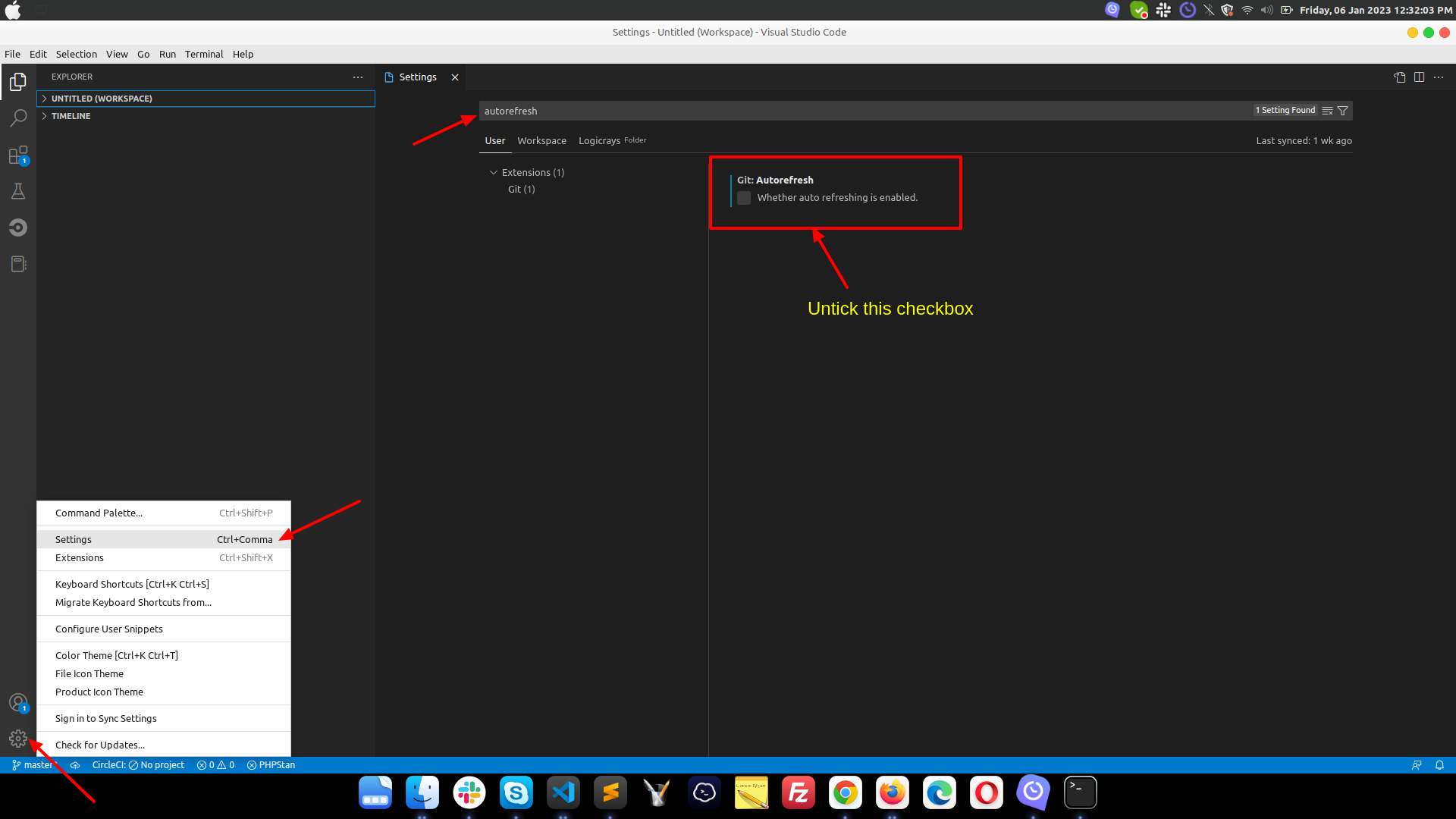
Fig. 5 Disable Git auto refresh
Solution 3: Disable Hardware Acceleration
If VS Code still freezes, try disabling hardware acceleration:
Press
Ctrl+Shift+PType “Configure Runtime Arguments”
Select “Preferences: Configure Runtime Arguments”
Add the following line before the closing bracket:
"disable-hardware-acceleration": true
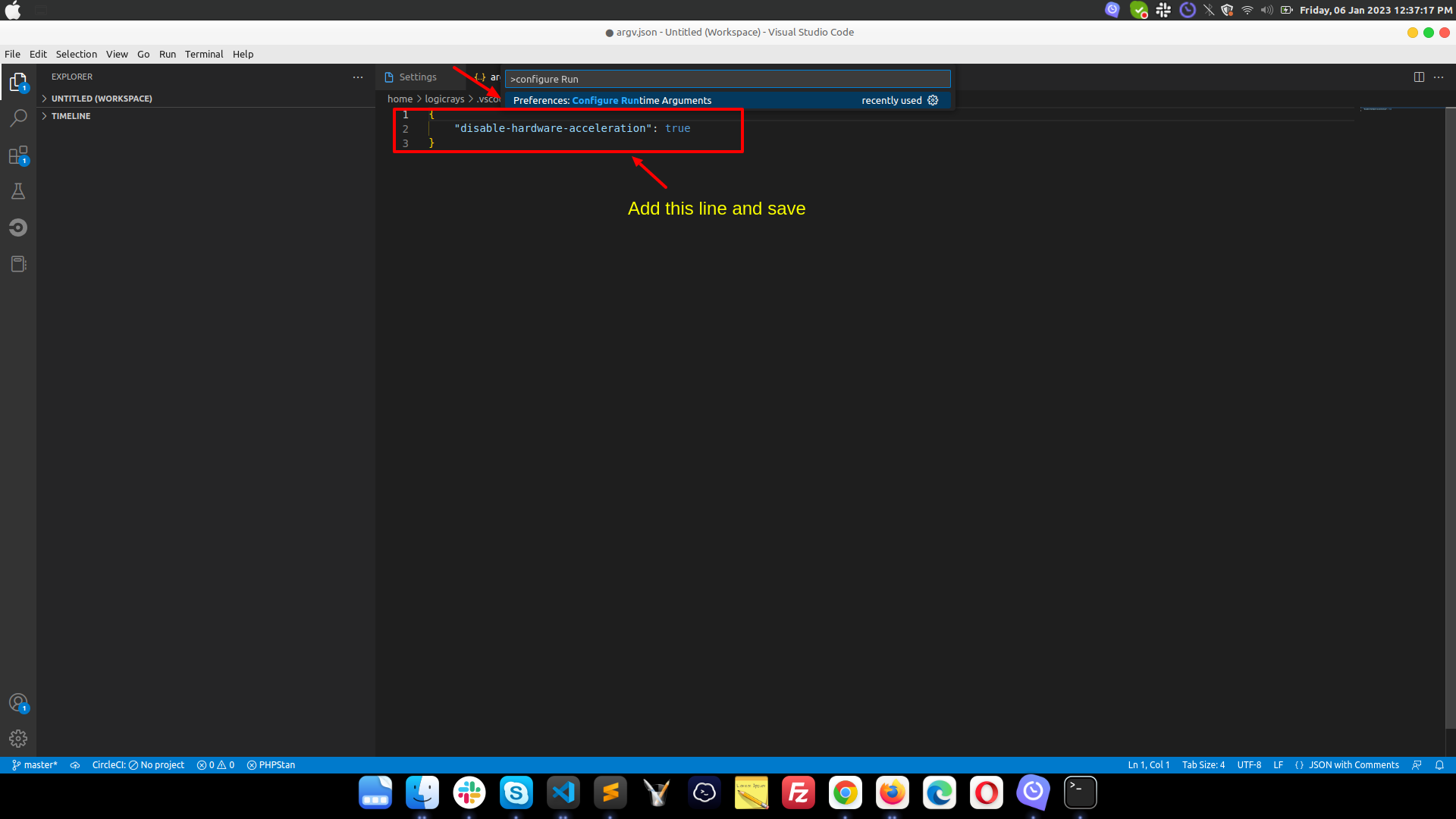
Fig. 6 Disable hardware acceleration
Solution 4: Increase File Size Limits
For large projects, increase file size limits:
{
    "intelephense.files.maxSize": 10000000,
    "workbench.editorLargeFileConfirmation": 100
}
Solution 5: Disable Unused Extensions
Disable extensions you don’t need to improve performance:
Go to Extensions (
Ctrl+Shift+X)Right-click on unused extensions
Select “Disable” or “Disable (Workspace)”
setting.json File Example
This is my vscode settings.json file content:
{
    "auto-rename-tag.activationOnLanguage": [
        "*"
    ],
    "better-comments.highlightPlainText": true,
    "codesnap.backgroundColor": "#c3abab",
    "codesnap.realLineNumbers": true,
    "codesnap.showWindowTitle": true,
    "debug.javascript.defaultRuntimeExecutable": {
        "pwa-node": "node"
    },
    "diffviewer.matchingMaxComparisons": 25000,
    "diffviewer.maxLineLengthHighlight": 100000,
    "diffviewer.outputFormat": "side-by-side",
    "diffviewer.renderNothingWhenEmpty": true,
    "editor.autoClosingQuotes": "always",
    "editor.bracketPairColorization.independentColorPoolPerBracketType": true,
    "editor.cursorBlinking": "solid",
    "editor.cursorStyle": "line",
    "editor.fontFamily": "Cascadia Code NF",
    "editor.formatOnType": true,
    "editor.guides.bracketPairs": true,
    "editor.inlineSuggest.showToolbar": "onHover",
    "editor.inlineSuggest.suppressSuggestions": true,
    "editor.linkedEditing": true,
    "editor.minimap.maxColumn": 75,
    "editor.minimap.scale": 2,
    "editor.minimap.sectionHeaderFontSize": 10,
    "editor.minimap.showSlider": "always",
    "editor.mouseWheelZoom": true,
    "editor.quickSuggestions": {
        "other": "on",
        "comments": "on",
        "strings": "on"
    },
    "editor.showFoldingControls": "always",
    "editor.stickyScroll.enabled": true,
    "editor.suggest.snippetsPreventQuickSuggestions": false,
    "editor.wordWrap": "on",
    "explorer.confirmPasteNative": false,
    "files.associations": {
        "*.module": "php"
    },
    "files.eol": "\n",
    "files.exclude": {
        "**/.git": true,
        "**/.svn": true,
        "**/.hg": true,
        "**/CVS": true,
        "**/.DS_Store": true,
        "**/node_modules": true,
        "**/.firebase": true
    },
    "files.watcherExclude": {
        "**/.git/objects/**": true,
        "**/.git/subtree-cache/**": true,
        "**/node_modules/**": true,
        "**/var/**": true,
        "**/pub/static/**": true,
        "**/generated/**": true
    },
    "git.autorefresh": false,
    "git.openRepositoryInParentFolders": "never",
    "github.copilot.advanced": {},
    "indentRainbow.colors": [
        "rgba(255,255,64,0.3)",
        "rgba(127,255,127,0.3)",
        "rgba(255,127,255,0.3)",
        "rgba(79,236,236,0.3)"
    ],
    "indentRainbow.ignoreLinePatterns": [
        "/[ \t]* [*]/g",
        "/[ \t]+[/]{2}/g"
    ],
    "indentRainbow.indicatorStyle": "light",
    "indentRainbow.lightIndicatorStyleLineWidth": 1,
    "intelephense.completion.fullyQualifyGlobalConstantsAndFunctions": true,
    "intelephense.diagnostics.argumentCount": false,
    "intelephense.diagnostics.deprecated": false,
    "intelephense.diagnostics.duplicateSymbols": false,
    "intelephense.diagnostics.embeddedLanguages": false,
    "intelephense.diagnostics.enable": false,
    "intelephense.diagnostics.implementationErrors": false,
    "intelephense.diagnostics.languageConstraints": false,
    "intelephense.diagnostics.typeErrors": false,
    "intelephense.diagnostics.undefinedClassConstants": false,
    "intelephense.diagnostics.undefinedConstants": false,
    "intelephense.diagnostics.undefinedFunctions": false,
    "intelephense.diagnostics.undefinedMethods": false,
    "intelephense.diagnostics.undefinedProperties": false,
    "intelephense.diagnostics.undefinedSymbols": false,
    "intelephense.diagnostics.undefinedTypes": false,
    "intelephense.diagnostics.undefinedVariables": false,
    "intelephense.diagnostics.unexpectedTokens": false,
    "intelephense.diagnostics.unusedSymbols": false,
    "intelephense.files.exclude": [
        "**/.git/**",
        "**/.svn/**",
        "**/.hg/**",
        "**/CVS/**",
        "**/.DS_Store/**",
        "**/node_modules/**",
        "**/bower_components/**",
        "**/.history/**",
        "**/.tsx/**"
    ],
    "intelephense.files.maxSize": 10000000,
    "intelephense.format.enable": false,
    "intelephense.phpdoc.useFullyQualifiedNames": true,
    "javascript.inlayHints.enumMemberValues.enabled": true,
    "javascript.inlayHints.functionLikeReturnTypes.enabled": true,
    "json.maxItemsComputed": 10000,
    "merge-conflict.autoNavigateNextConflict.enabled": true,
    "notebook.showFoldingControls": "always",
    "php-docblocker.useShortNames": true,
    "php-docblocker.alignReturn": true,
    "php-docblocker.qualifyClassNames": true,
    "php.suggest.basic": false,
    "php.validate.run": "onType",
    "phpcs.executablePath": "/var/www/html/InstallationDir/vendor/bin/phpcs",
    "phpcs.showWarnings": true,
    "phpcs.standard": "/var/www/html/InstallationDir/Magento2/ruleset.xml",
    "redhat.telemetry.enabled": false,
    "search.exclude": {
        "**.git": true,
        "**/.git": true
    },
    "security.workspace.trust.emptyWindow": false,
    "security.workspace.trust.enabled": false,
    "security.workspace.trust.startupPrompt": "never",
    "security.workspace.trust.untrustedFiles": "open",
    "sonarlint.connectedMode.project": {},
    "sonarlint.focusOnNewCode": true,
    "sonarlint.ls.javaHome": "/usr/lib/jvm/java-17-openjdk-amd64",
    "sonarlint.output.showAnalyzerLogs": true,
    "sonarlint.pathToNodeExecutable": "/home/logicrays/.nvm/versions/node/v18.19.1/bin/node",
    "sonarlint.rules": {
        "javascript:S6582": {
            "level": "on"
        }
    },
    "terminal.integrated.env.linux": {},
    "terminal.integrated.shellIntegration.history": 10000,
    "trailing-spaces.backgroundColor": "rgba(255,0,0,0.8)",
    "typescript.suggest.paths": false,
    "vsc-lfs.replacements": [],
    "vscodesnap.realLineNumbers": true,
    "vscodesnap.showWindowTitle": true,
    "vscodesnap.windowBorderRadius": "5px",
    "vscodesnap.windowControlStyle": "OS X",
    "window.title": "${dirty}${activeEditorLong}${separator}${rootName}${separator}${profileName}${separator}${appName}",
    "window.titleBarStyle": "native",
    "window.zoomLevel": 0.2676050217395348,
    "workbench.colorCustomizations": {},
    "workbench.editor.empty.hint": "hidden",
    "workbench.editor.highlightModifiedTabs": true,
    "workbench.editor.tabSizingFixedMaxWidth": 250,
    "workbench.editor.tabSizingFixedMinWidth": 100,
    "workbench.editor.wrapTabs": true,
    "workbench.editorAssociations": {
        "*.gz": "default",
        "*.php": "default"
    },
    "workbench.iconTheme": "material-icon-theme",
    "workbench.list.horizontalScrolling": true,
    "workbench.startupEditor": "none",
    "workbench.tree.enableStickyScroll": true,
    "workbench.tree.stickyScrollMaxItemCount": 10,
    "[typescriptreact]": {},
    "print.folder.fileNames": true,
    "print.folder.include": [],
    "print.folder.exclude": [
        "{bin,obj,out}",
        "node_modules",
        "data",
        "**/*.{bin,exe,dll,hex,pdb,pdf,pfx,png,jpg,gif,bmp,suo,design}"
    ],
    "print.folder.maxLines": 1200,
    "print.folder.maxFiles": 30,
    "print.folder.includeFileList": false,
    "editor.fontLigatures": false,
    "vsicons.dontShowNewVersionMessage": true,
    "editor.codeActionsOnSave": {},
    "editor.semanticTokenColorCustomizations": {},
    "php.validate.executablePath": "/usr/bin/php",
    "database-client.autoSync": true,
    "database-client.queryWithSchema": true,
    "editor.minimap.autohide": "none",
    "workbench.editorLargeFileConfirmation": 100,
    "workbench.editor.decorations.colors": false,
    "github.copilot.chat.agent.runTasks": false,
    "github.copilot.chat.agent.thinkingTool": true,
    "github.copilot.chat.startDebugging.enabled": false,
    "chat.mcp.serverSampling": {
        "Global in Code: figma": {
            "allowedModels": [
                "copilot/gpt-4.1",
                "copilot/gpt-5-mini"
            ]
        }
    },
    "editor.minimap.enabled": false,
    "terminal.integrated.fontSize": 13,
    "terminal.integrated.fontFamily": "Cascadia Code NF",
    "window.commandCenter": false
}
Custom Code Snippets
Creating custom snippets can significantly boost your productivity.
How to Create PHP Snippets
Step 1: Open Snippets Configuration
Press
Ctrl+Shift+P(orCmd+Shift+Pon macOS)Type “Configure User Snippets”
Select “php.json” (or create it if it doesn’t exist)
Step 2: Add Custom Snippets
Add your custom snippets in JSON format:
 {
     // Print and exit for debugging
     "PrintR and exit": {
         "prefix": "ep",
         "body": [
             "echo '<pre>';",
             "print_r($1);",
             "exit();"
         ],
         "description": "Echo print_r and exit for debugging"
     },

     // Custom logger for Magento
     "Print Custom Logger": {
         "prefix": "cLog",
         "body": [
             "$writer = new \\Zend_Log_Writer_Stream(BP . '/var/log/custom.log');",
             "$logger = new \\Zend_Log();",
             "$logger->addWriter($writer);",
             "$logger->info(print_r($1, true));"
         ],
         "description": "Print to custom log file"
     },

     // Var dump and die
     "Var dump and die": {
         "prefix": "vdd",
         "body": [
             "var_dump($1);",
             "die();"
         ],
         "description": "Var dump and die"
     }
 }
Using Snippets:
Type
epand press Tab to use “PrintR and exit”Type
cLogand press Tab to use custom loggerType
vddand press Tab to use “Var dump and die”
Snippet Variables
Snippets support special variables:
$1, $2, $3, ...  - Tab stops (cursor positions)
$0               - Final cursor position
${1:label}       - Placeholder with default text
${1|one,two,three|} - Choice selection
Example with placeholders:
"Create PHP Class": {
    "prefix": "class",
    "body": [
        "<?php",
        "namespace ${1:Vendor\\Module\\Model};",
        "",
        "class ${2:ClassName}",
        "{",
        "    public function ${3:methodName}()",
        "    {",
        "        $0",
        "    }",
        "}"
    ]
}
Essential Keyboard Shortcuts
General Shortcuts
Shortcut |
Description |
|---|---|
|
Command Palette |
|
Quick file open |
|
Open Settings |
|
Keyboard Shortcuts |
|
Toggle terminal |
|
Toggle sidebar |
Editing Shortcuts
Shortcut |
Description |
|---|---|
|
Select word / Multi-cursor |
|
Select all occurrences |
|
Add cursor |
|
Toggle line comment |
|
Toggle block comment |
|
Delete line |
|
Move line up/down |
|
Copy line up/down |
Search and Replace
Shortcut |
Description |
|---|---|
|
Find in file |
|
Replace in file |
|
Find in workspace |
|
Replace in workspace |
|
Find next/previous |
Tips and Best Practices
Workspace vs User Settings
User Settings: Apply globally to all VS Code instances
Workspace Settings: Apply only to current project
Workspace settings override user settings
Tip
Use workspace settings for project-specific configurations like phpcs paths.
Increase Productivity
Master keyboard shortcuts - Reduces mouse usage
Use multi-cursor editing - Edit multiple lines simultaneously (
Ctrl+D)Leverage IntelliSense - Auto-completion saves time (
Ctrl+Space)Use integrated terminal - No need to switch windows (
Ctrl+`)Install relevant extensions - Only what you need
Create custom snippets - For frequently used code patterns
Use Git integration - Built-in version control
Debugging PHP in VS Code
Install PHP Debug extension
Install Xdebug on your server
Configure
launch.json:
{
    "version": "0.2.0",
    "configurations": [
        {
            "name": "Listen for Xdebug",
            "type": "php",
            "request": "launch",
            "port": 9003
        }
    ]
}
Set breakpoints by clicking left of line numbers
Press
F5to start debugging
Conclusion
Visual Studio Code is a powerful, flexible code editor that can be customized to fit your PHP/Magento development workflow. This guide covered:
Installation and basic setup
PHP CodeSniffer configuration for code quality
Essential extensions for PHP/Magento development
Performance optimization techniques
Custom snippets for productivity
Keyboard shortcuts for efficiency
Next Steps:
Explore the VS Code Extension Marketplace
Configure debugging for your projects
Create project-specific workspace settings
Learn advanced Git features with GitLens
Set up remote development with SSH
Additional Resources: