Magento 2: NPM Package Integration
You can integrate npm packages into your Magento 2 custom modules to extend functionality with modern JavaScript libraries.
Overview
This guide demonstrates how to use the @imgix/js-core npm package in a custom Magento 2 module. @imgix/js-core is a JavaScript library for generating image URLs with srcset attributes, but the same approach can be applied to any npm package.
Installation Steps
Follow these steps to integrate any npm package into your custom Magento 2 module.
Navigate to your module’s web directory:
cd <magento_root>/app/code/Vendor/Module/view/adminhtml/web
Initialize npm to create a
package.jsonfile:npm initFollow the prompts to set up your package configuration.
After running
npm init, apackage.jsonfile is generated:{ "name": "Magento 2 imgix package", "version": "1.0.0", "description": "Integration of imgix package in Magento 2", "main": "index.js", "scripts": { "test": "echo \"Error: no test specified\" && exit 1" }, "author": "Imgix", "license": "ISC" }
Install the
@imgix/js-corenpm package:npm install @imgix/js-core
This will create the
node_modulesdirectory andpackage-lock.jsonfile.Note
The
node_modulesdirectory contains all the package dependencies, andpackage-lock.jsonlocks the versions for consistent installations.Configure RequireJS to include the npm package in
requirejs-config.js:var config = { paths: { ImgixClient: 'Vendor_Module/node_modules/@imgix/js-core/dist/imgix-js-core.umd' } };
This maps the
ImgixClientalias to the npm package’s distribution file.
Usage Example
Now you can use the npm package in your module’s JavaScript files:
require([
    'jquery',
    'ImgixClient'
], function ($, ImgixClient) {

    // Your code here

    // Initialize the Imgix client
    const client = new ImgixClient({
        domain: 'testing.imgix.net',
        secureURLToken: 'my-token',
        includeLibraryParam: false,
    });

    // Generate srcset for responsive images
    const srcset = client.buildSrcSet(
        'image.jpg',
        {
            h: 800,
            ar: '3:2',
            fit: 'crop',
        },
        {
            devicePixelRatios: [1, 2],
        },
    );

    console.log(srcset);

    // Additional code...
});
Result
The srcset attribute is generated and added to the img tag. Here’s the output:
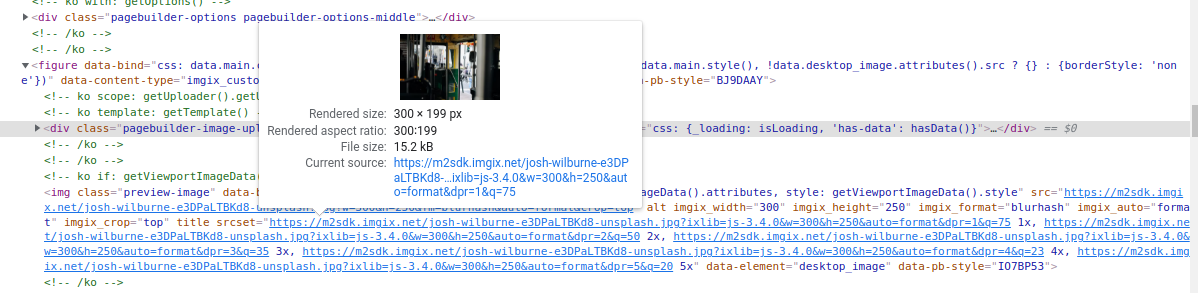
Fig. 19 Srcset attribute generated in the img tag
Benefits
Using npm packages in Magento 2 provides several advantages:
Modern JavaScript Libraries: Access to thousands of npm packages
Better Dependency Management: npm handles package versions and dependencies
Code Reusability: Use well-tested, community-maintained libraries
Easy Updates: Simple package updates with npm commands
Tip
Remember to add the node_modules directory to your .gitignore file to avoid committing large dependency files to your repository. Team members can install dependencies using npm install.